A Plot Board for Your Novel: Acts, Setups and Payoffs, and Structure Warnings
November 24, 2026 · Equipo Style Optimizer
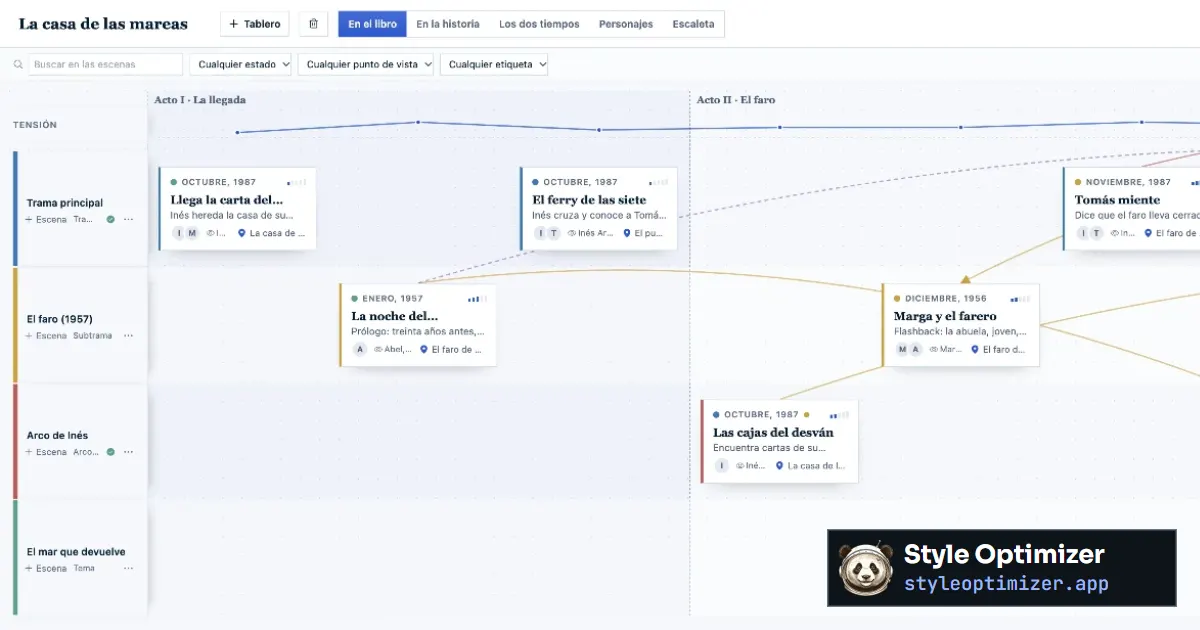
The Outline, Style Optimizer’s plot board, launched on November 1 under the name Threads. It was a board of lanes: one thread per plotline, one card per scene, and the same story seen in the order it is read and in the order it happens. In the three weeks since, it has had seven updates, and it now also works as a way to review the structure of a book.
To show them we use a sample board, The House of Tides: in 1987 Inés inherits a house on an island and finds out what happened the night the lighthouse went dark, thirty years earlier. The novel has four threads: the main plot, the 1957 story told in jumps, Inés’s arc and a theme, “the sea gives back.”
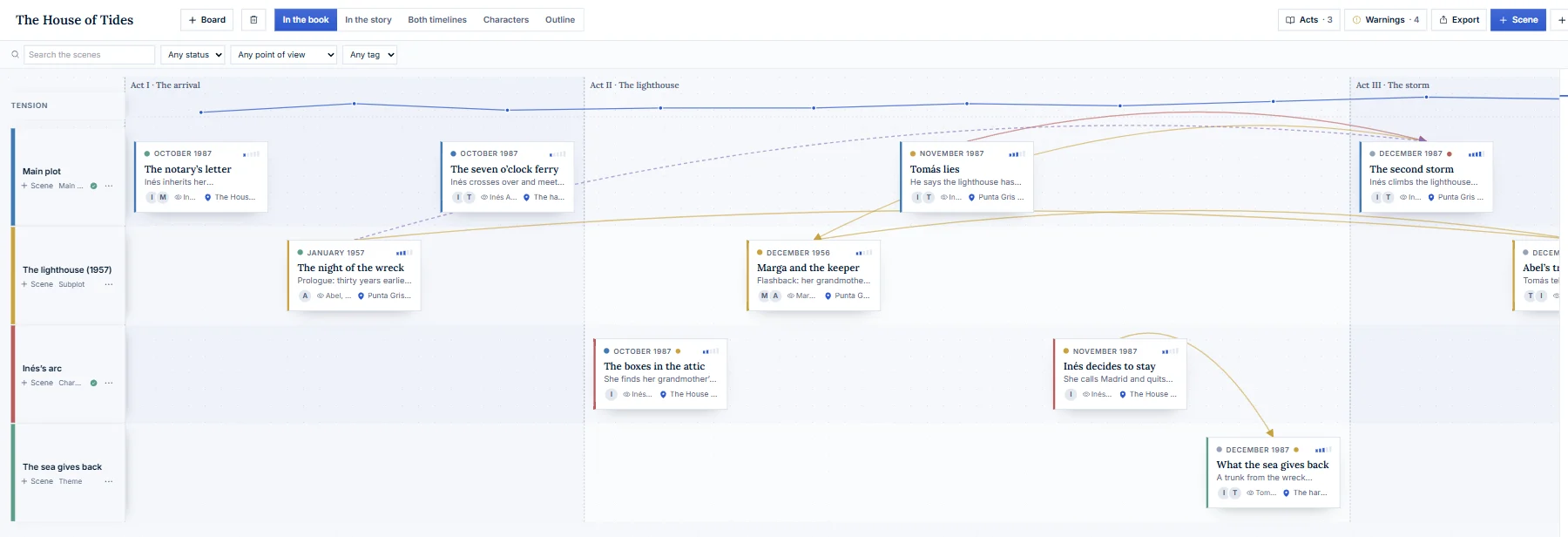
The board: the acts along the top, the tension curve for the whole work and the links between scenes.
A card for every scene
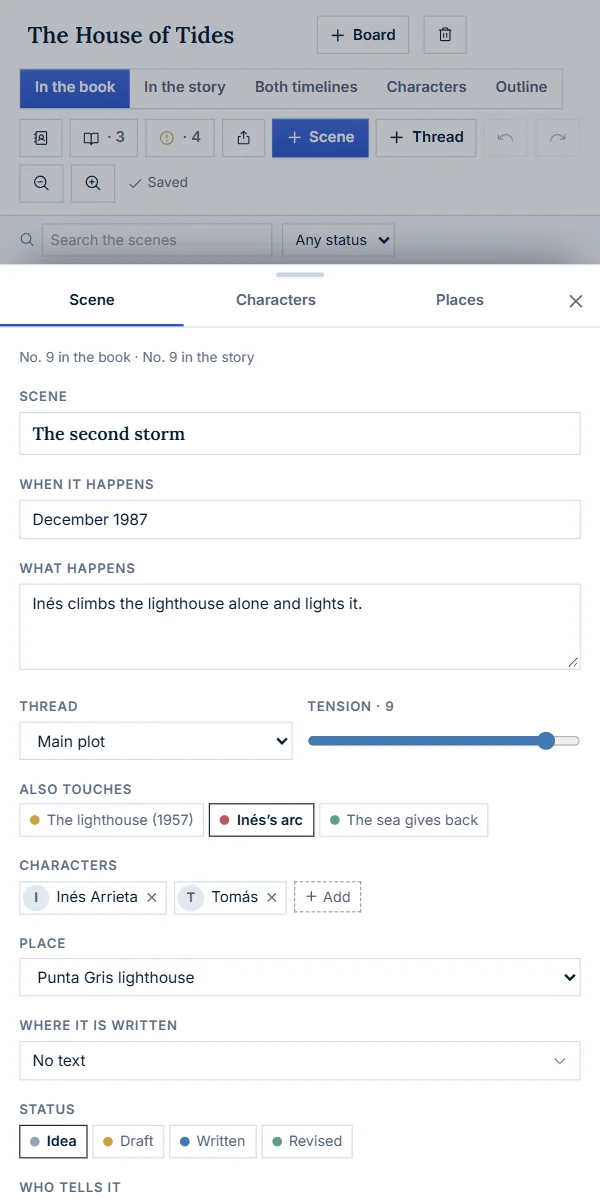
Click a scene and its card opens: when it happens, what happens, its tension from 0 to 10, who appears, where, and the text in the editor where it is written. The card now also holds:
The status: idea, draft, written or revised. A colored dot on the card shows it without opening anything.
Who tells it, for novels with more than one narrator.
Free-form tags (“clue,” “secret,” “storm”) and notes for whatever doesn’t fit in the summary.
Other threads it touches. A scene lives in one lane and can touch other threads: the card shows a dot in the color of each.
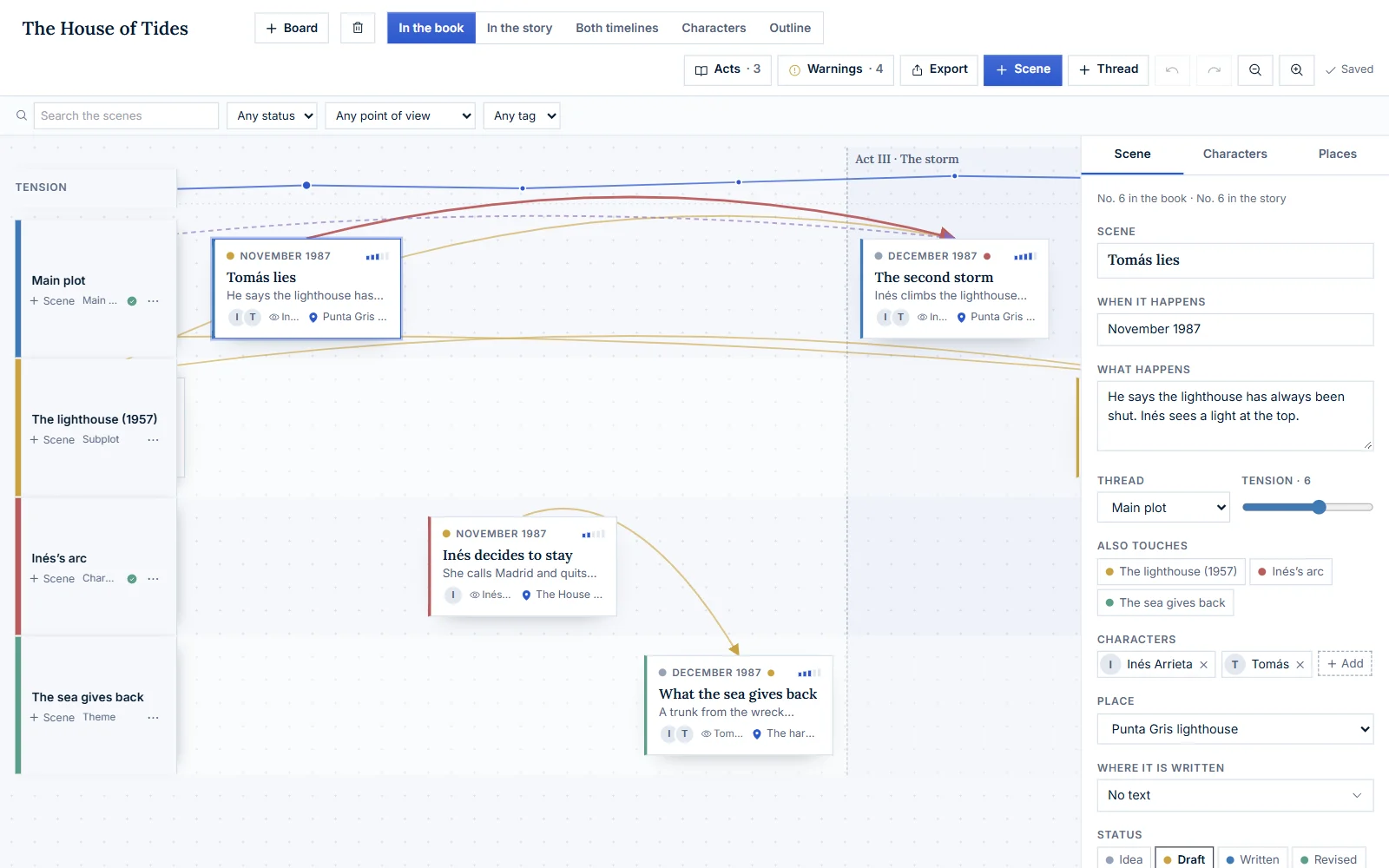
Above the board there is a bar to search and to filter by status, narrator or tag. Whatever falls outside the filter is dimmed and stays in view, so you can see where each scene lands. Filter by “draft,” for example, and you see which part of the book is half written.
Threads have a card too: a type (main plot, subplot, arc or theme), a description and a “closed” mark once they have their ending.
Acts and the tension curve
The Acts button splits the book into acts or chapters. Each one starts at a scene and runs until the next one begins; on the board they show as bands over the lanes. Above the threads runs the tension curve for the whole work, scene by scene. If the second act goes flat, you see it on the board before you reread it.
Setups, causes and echoes
You can now link two scenes in three ways:
Setup → payoff: what gets planted and later collected. In the example, the letters in the attic (scene 4) and Tomás’s confession (scene 10).
Cause → effect: Tomás lies about the lighthouse, and so Inés climbs it alone in the storm.
Echo: two scenes that answer each other, like the two storms, the one in 1957 and the one in 1987.
The arrows are drawn on the board and in the “Both timelines” view, which puts the order of the book on top and the order of the story underneath. The lines that cross are the jumps into the past.
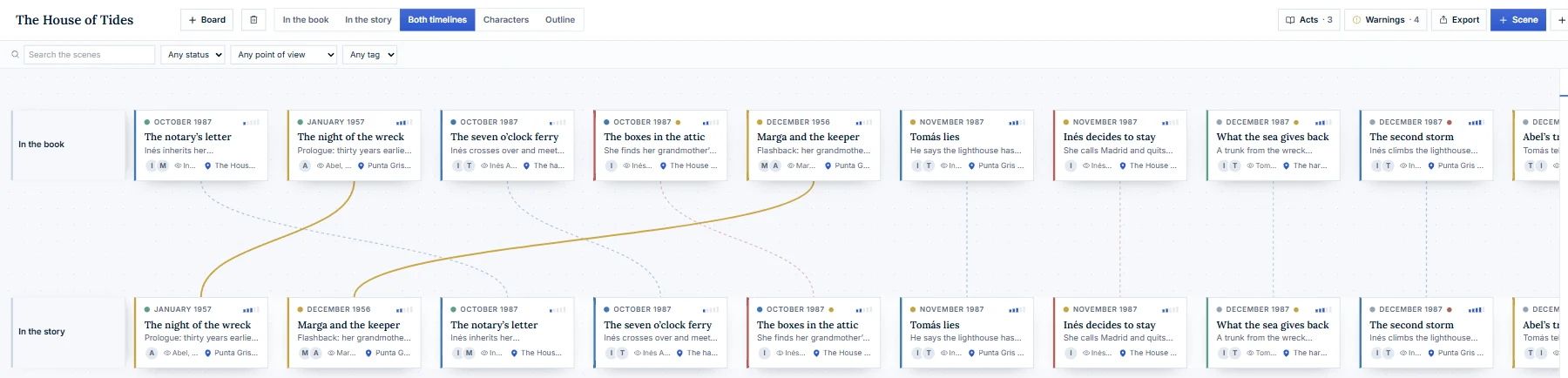
“Both timelines”: the prologue and the 1956 flashback come first in the story and later in the book.
Board warnings
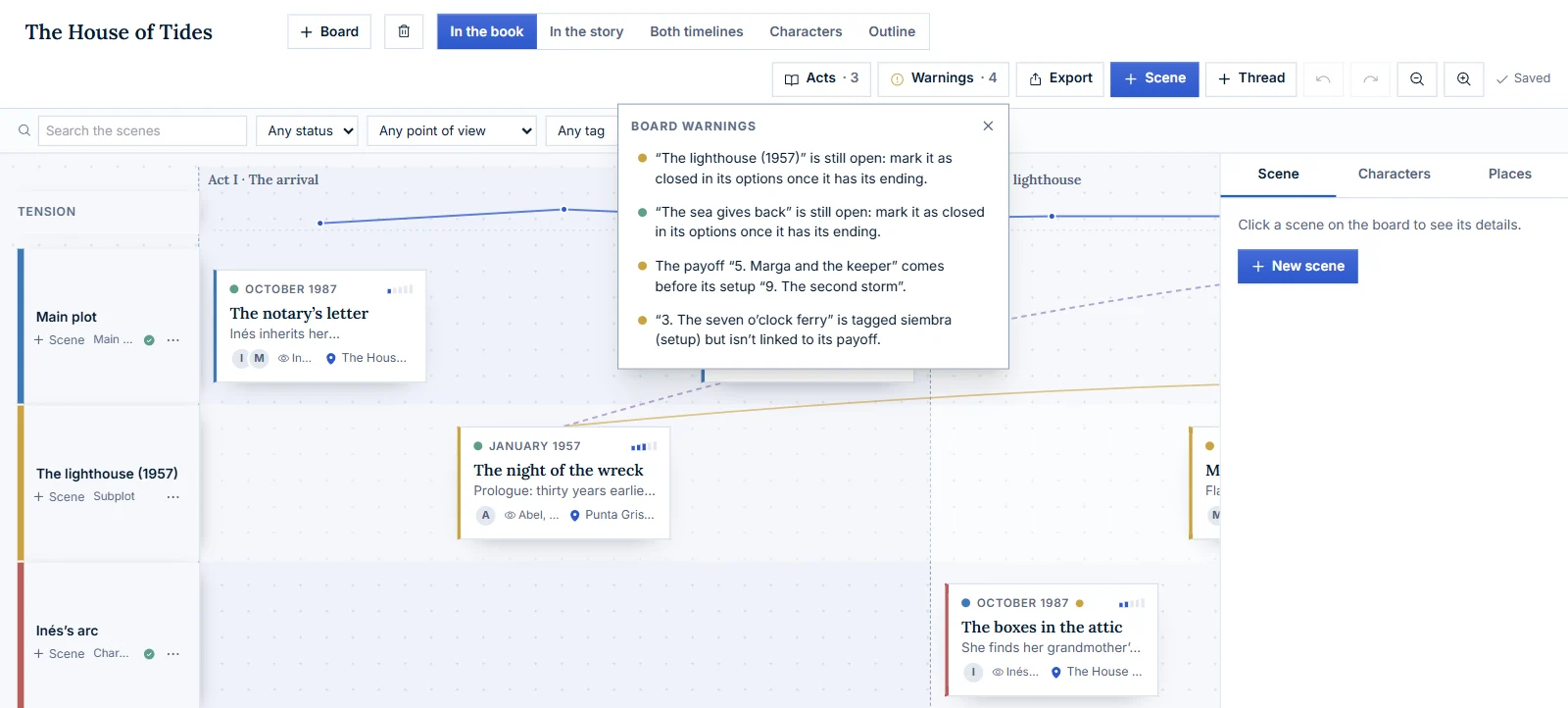
The warnings button goes over the structure and points out what is worth a look:
a thread that disappears for too many scenes in a row;
a thread that still has no ending;
a payoff placed before its setup;
a scene tagged as a setup that isn’t linked to its payoff.
Click a warning and it takes you to the scene. The warnings show you where to look, and the changes are yours to decide.
The table view
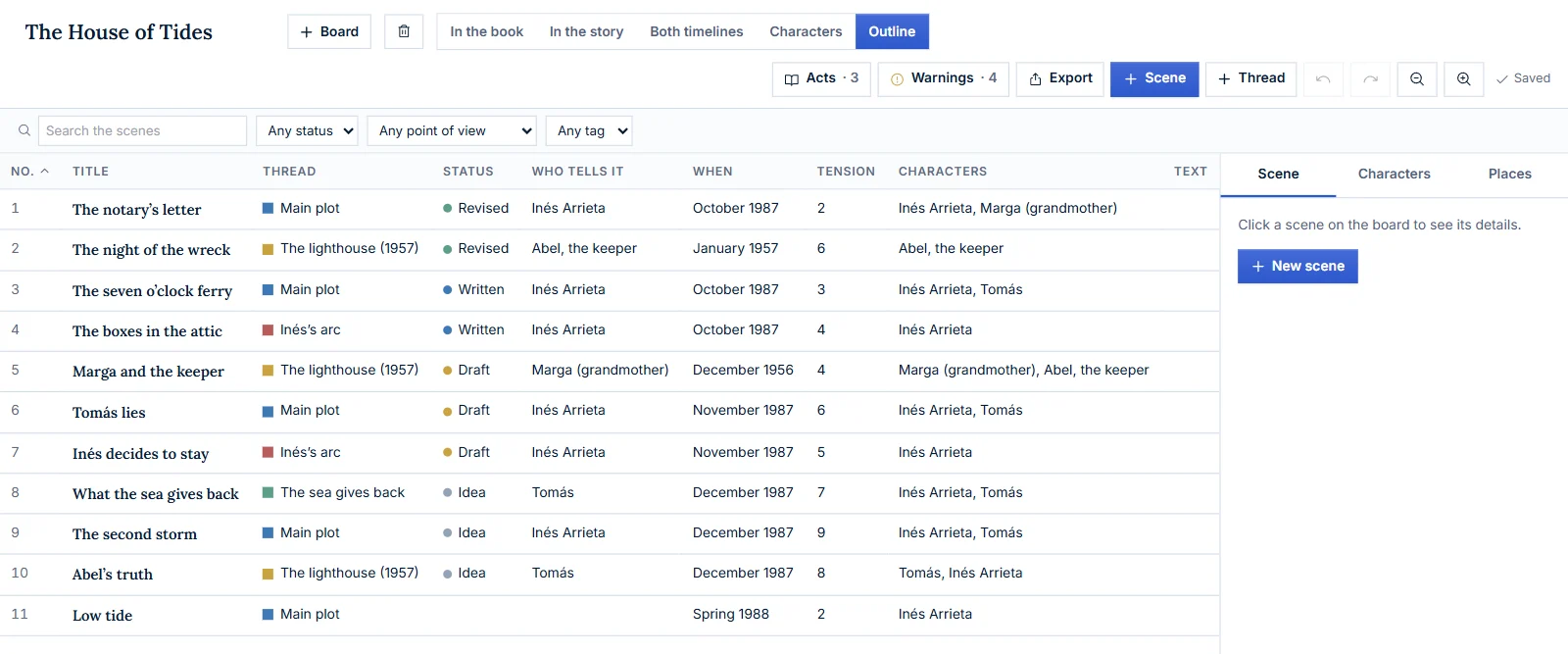
The fifth view, “Outline,” lays the board out as a table: number, title, thread, status, narrator, when it happens, tension, characters and text. Click a column header to sort by it. From Export you can download the table as Markdown or print it, and from the print dialog you can save it as a PDF to take to a meeting with your editor or to work on paper. If you’d like the method behind the table, see what a scene outline is, with an example and a template.
Starting from a structure
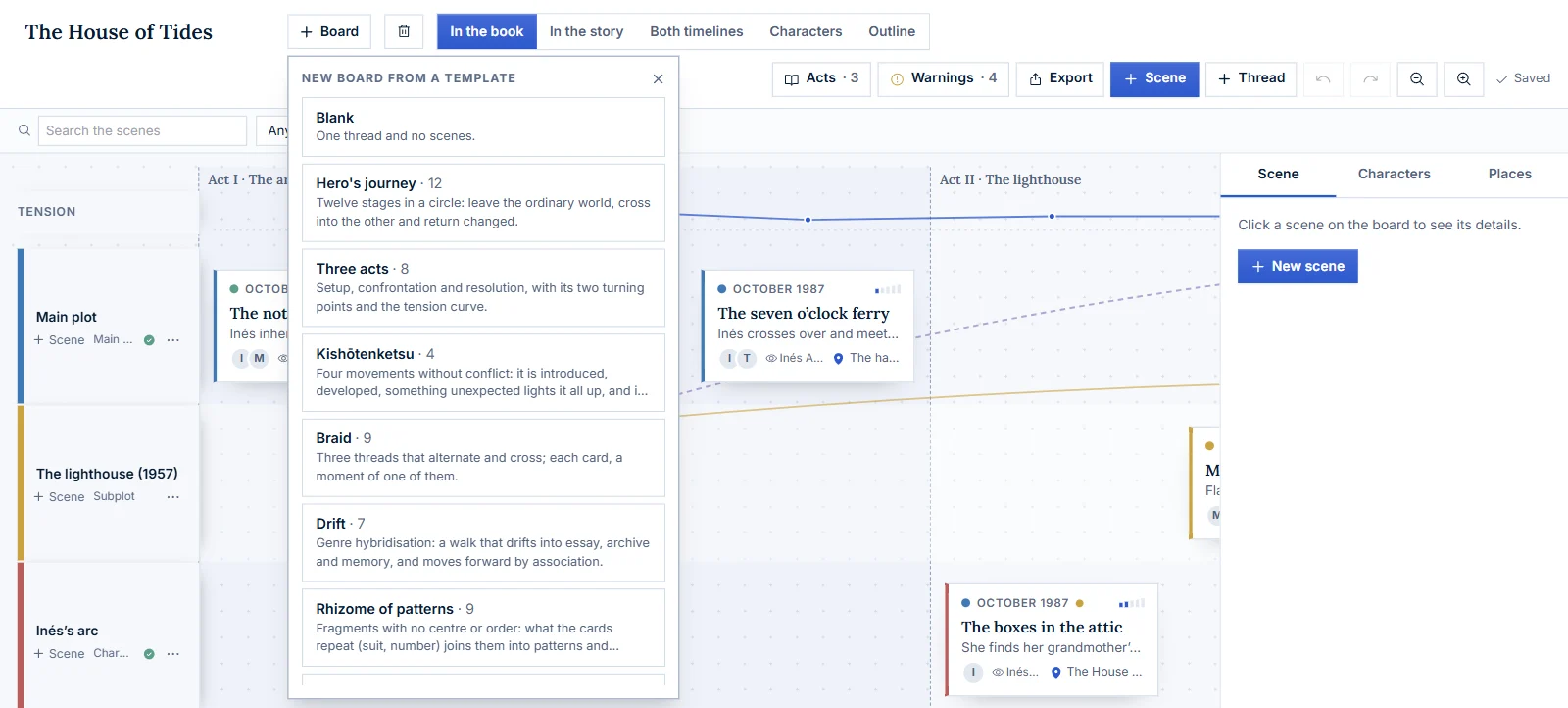
A new board can start blank or from a template: the hero’s journey, three acts, kishōtenketsu, the three-thread braid and the less classical shapes from the plot oracle, such as the drift or the rhizome of patterns. Each template comes with its scenes named, a question in the notes of each one to guide you, and the acts already marked.
From the editor, the profiles and your phone
In the editor, the Fiction panel of each text shows the scenes on your boards that are linked to it and takes you to them. That way you go from a chapter to its place in the structure in one click. From a character or place profile you can add it to a scene, or remove it, without leaving the profile.
On a phone, the scene card slides up from the bottom as a sheet and leaves the board visible behind it.
Saving
The board saves itself, a moment after every change, and also when you switch tabs or close the page. If you have it open in two places at once, the second save respects the first: the Outline warns you and shows you the latest version.
Free and PRO
On Free you get one board with up to 30 scenes. On PRO, one board per work and up to 1,000 scenes per board.